|
Hello and welcome to this tutorial.
In this tut I will explain differend ways to blend an image to you.
You all know the problem, there is an image in a signature or banner but it doesn’t fit, because it’s not blended enough.
The first thing you could do is this:
Blending with the marquee tool.
Take the image, make a copy of the image layer for if something goes wrong and select the rectangular or elliptical:
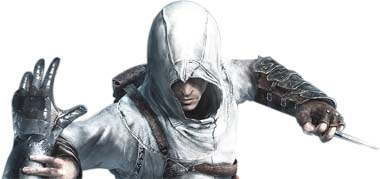
Set the feather on anything between 5 and 25, depending on the size of the image and how much you want to erase.
Now make a selection, you may get this error:
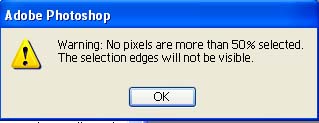
This means the selection wasn’t big enough or you need to lower the feather.
Now make sure you selected the image layer and start moving the selection to differend parts of the image. Make sure you don’t delete too much:
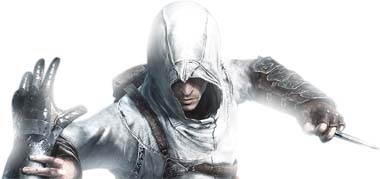
The best is to do this while the background is under it so you can see what looks best.
Blending with the eraser tool.
This one is pretty much the same as with the marquee tool, but a little more accurate.
Ofcourse take your image, and select the erase tool.
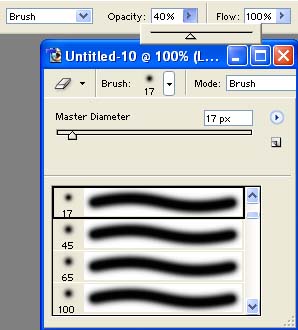
Now select your eraser size, depending on how large portions you want to erase and always take the soft brushes. Set the opacity to 40%:
Now select the image layer and start erasing at random or chosen points:
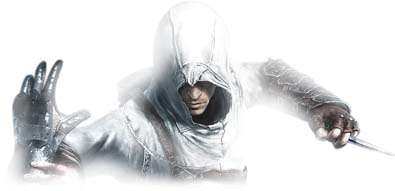
Because the size of the eraser tool is better ajustable, it’s more accurate.

|