How to make a nice Border TUT
Welcome to my tutorial. in this tutorial,
I will show you how to make one of my FAMOUS borders.
Why?
Lately I’ve had some reactions on my works like:
“Wow nice border” and “I like your borders”
So i decided to show the world how to make them.
Let’s start with a background:

What to do with this background?
First of all, Make a new layer
Now make a nice selection all around the sig.
(tip: hold shift while doing so)
At the end it should look something like this:
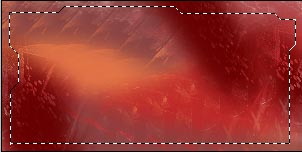
When you have done this, inverse the selection.
You can do this by going to the “Select” menu on top of the screen:
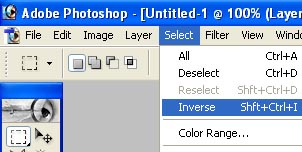
After you have done this, you can Fill it up,
do this by going to the “Edit” menu in the top left corner and click Fill..:
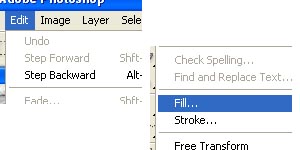
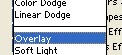
Now deselect youf selection by clicking it.
Now set the layer on “Overlay”:
After that, go to the “Bevel and Emboss” of your Border layer.
Do this by double clicking the layer.
Now go to “Stroke” and use these settings:
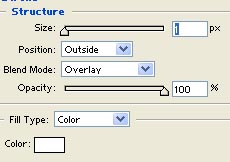
It’s very important that you set it on “Overlay” else the whole effect will be ruined.
Now, go to your menu and select the “Eraser tool”
After you have selected the “Eraser tool”
go to the brushes window in the top left corner:
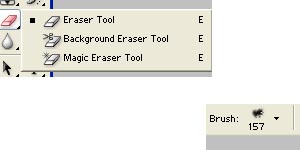
Select a nice grungy or whatever your style of background is.
Now start clicking at random points of your border.
You will erase small bits of the border.
Don’t do this too often or the border will be gone. :P
Anyway, this was my result:

I hope you have enjoyed my tutorial.